
Task Approval Configuration Guide
1. Enabling Task Approval
You can enable Task Approval at the Group level.
-
Open the Group you want to manage.
-
Go to the Settings tab.
-
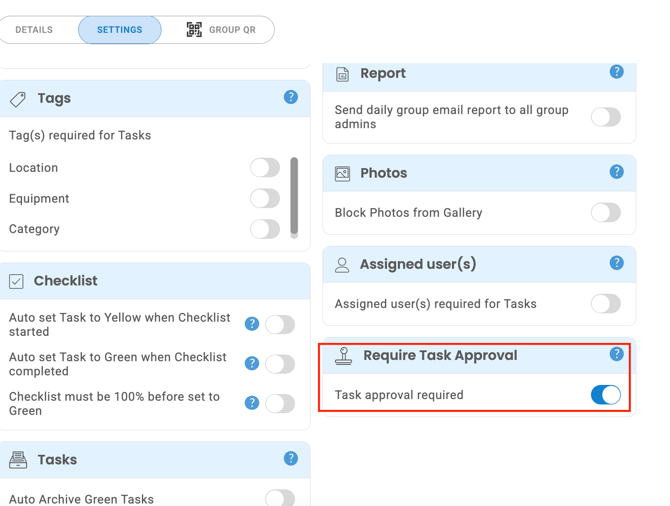
Scroll to the Require Task Approval section.
-
Toggle Task approval required ON.
Once enabled, all tasks updated to Green within this group will require approval from a Group Admin.
2. What Happens When Enabled
When Task Approval is active:
-
Users can still mark tasks as Green, but the task will not be completed automatically.
-
The task moves into a Pending / Awaiting Approval state.
-
Group Admins receive notifications that tasks are waiting for review.
-
Admins can filter these tasks using the “Approval tasks only” SnapFilter.
3. Approving Tasks
-
Open the Fix feed.
-
Select the SnapFilter menu.
-
Choose Approval tasks only to view all tasks awaiting review.
-
Select a task and tap Approve to mark it completed.
Approved tasks move to Green and behave like any normal completed task.
4. Rejecting Tasks
Admins can reject tasks that need more work.
-
Open the task awaiting approval.
-
Tap Reject.
-
Add an optional note to explain what must be corrected.
-
The task returns to its previous state (usually Yellow or Red) so the user can continue working.
5. Scheduled Tasks (PPM)
Scheduled Tasks and PPM tasks follow the same process:
-
When a user completes a scheduled task and marks it Green, it still requires approval.
-
Approval is required before the next scheduled task instance is created.
6. Turning Off Task Approval
If you want to disable Task Approval:
-
Return to the Group → Settings.
-
Scroll to Require Task Approval.
-
Toggle it OFF.
When disabled, tasks will complete immediately when set to Green.