
Who Can Add New Users?
-
✔️ Site Admins
-
✔️ Group Admins
-
❌ Regular Users
Site Admins will be notified when a new user is added to a site.
Add a New User on Mobile App
The quickest way is to Use the Plus (+) button in FIX → Add New User.
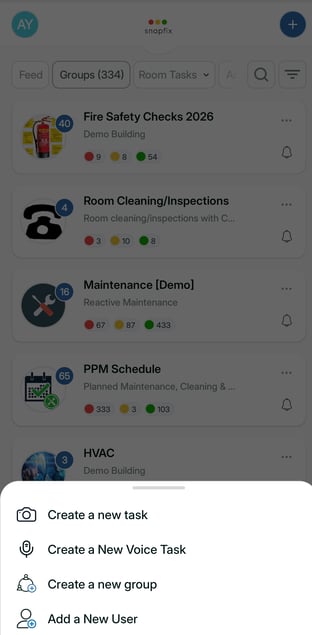
OR
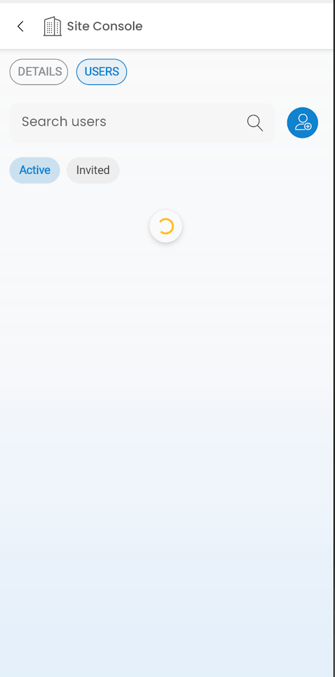
1. Open the Site Console
-
Select your Site
-
Go to Site Console → Users
-
Tap Add New User. You can manage user preferences in here to.
2. Choose the method
Select one of:
-
Email
-
Phone
-
QR Code (mobile only)
3. Enter Details
Fill in:
-
First name
-
Last name
-
Email or phone number
If the contact already exists, you will see:
“This email/number already exists on this site. Please try another one.”
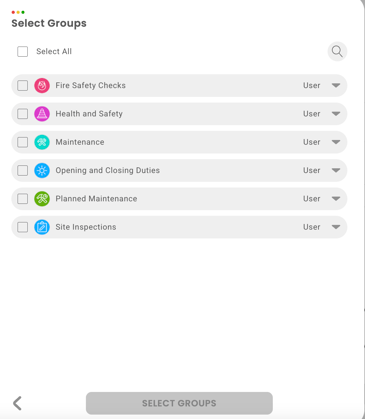
4. Assign Groups & Roles
5. Send Invitation
User is invited and will appear in your Users list as soon as they activate their profile.
Add a New User via QR Code
Ideal for fast, in-person onboarding.
Steps:
-
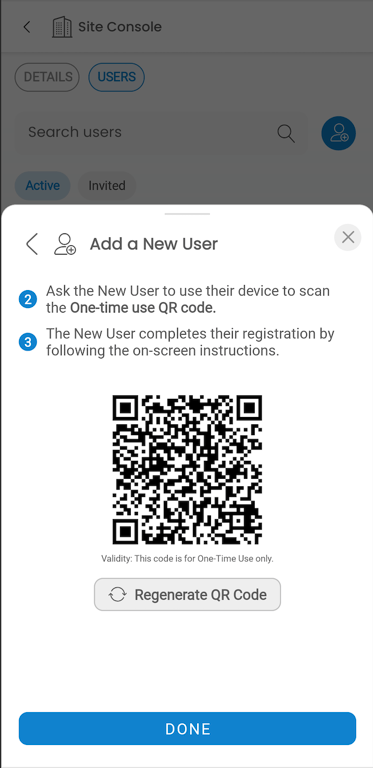
Select QR Code in the Add New User popup
-
Choose groups & roles
-
Display the QR
-
Have the new user scan it
QR codes are:
-
One-time use
-
Short-lived
-
Regeneratable
-
Contain no personal information
What the Invited User Sees
If they already have a Snapfix profile:
-
They are automatically added to your Site
-
They receive a confirmation email/SMS
-
They see a Congratulations popup the next time they open Snapfix
If they are new to Snapfix:
-
They tap the validation link from email/SMS
-
Snapfix opens (or they install it from the Play Store / App Store
-
They set their password
-
Accept terms
-
They are added to your Site and Groups as selected
Add New Users on the Web
1. Open Manage Users
Go to your Site Console (or Multi-Site Console) → Manage Users
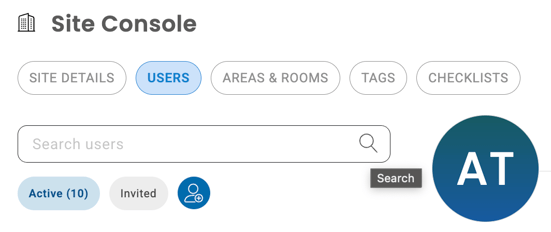
2. Add Users Individually
-
Click Add New Users
-
Enter name + email/phone
-
Assign groups & roles
-
Click Add New Users
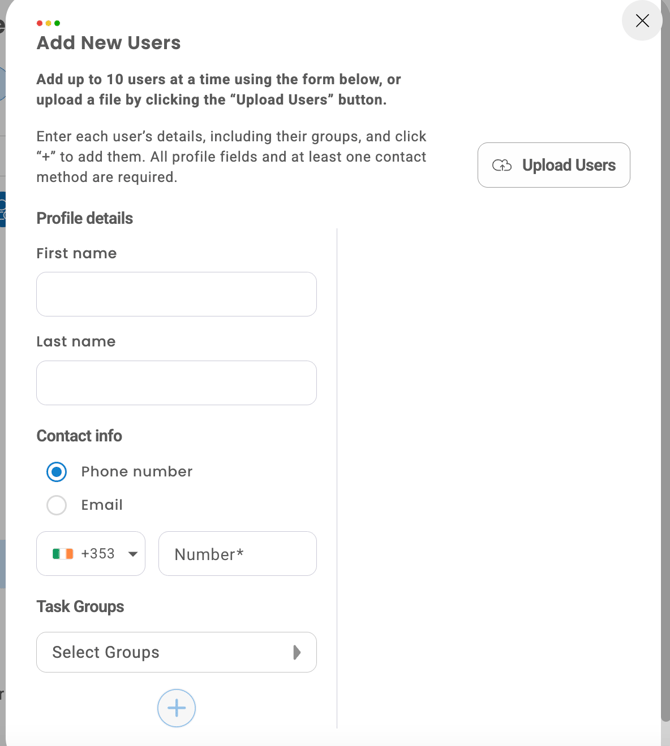
3. Upload Multiple Users (Bulk Upload)
-
Click Upload Users
-
Download the template
-
Add users
-
Upload the .xls/.xlsx file
Troubleshooting
User didn’t receive the invite
-
Ask them to check spam/junk
-
Confirm the email/phone is correct
-
Try using a QR invite instead on mobile instead
“This email/number already exists”
This means the user is already on this Site.
User added to multiple Sites
They will see a “Go to Site” popup when they next open Snapfix.
Still Need Help?
Contact Snapfix Support anytime support@snapfix.com